
Twilio WhatsApp API Setup Guide: Fix Common Errors Fast
Last updated: March 2026

Introduction
Setting up the WhatsApp API is the biggest blocker in building any WhatsApp automation system. Most tutorials skip critical steps, leading to failed webhooks, delayed activation, or messages not being delivered.
This guide shows the exact process to connect WhatsApp with Twilio, avoid common setup failures, and get your first working message flow.
Whether you’re setting up Twilio WhatsApp API for customer support, order notifications, or building an AI chatbot, this step-by-step tutorial covers everything from sandbox activation to webhook configuration and error fixes.
How to Set Up Twilio WhatsApp API (Quick Steps)
- Create a Twilio account
- Activate WhatsApp Sandbox
- Connect your WhatsApp number
- Configure webhook URL (HTTPS)
- Send a test message
- Verify payload and reply
What is Twilio WhatsApp API?
The Twilio WhatsApp API allows businesses to send and receive messages programmatically without using the standard WhatsApp Business app.
It is commonly used for:
- Customer support automation
- Order notifications
- Chatbots and AI agents
- Marketing and follow-ups
This setup acts as a bridge between WhatsApp and your backend system (like n8n).
What You Need Before Starting
- Twilio account (free trial)
- Facebook Business Account (required for production approval)
- Verified phone number — must not be registered with WhatsApp Business app
- Access to WhatsApp on your phone
- n8n webhook URL (or any backend endpoint)
- SSL certificate if self-hosting (Twilio requires HTTPS)
Step 1 — Create a Twilio Account
Go to Twilio and create a free account.
After login:
- Access the dashboard
- Copy:
- Account SID
- Auth Token
These credentials will be used later to connect your system.
Step 2 — Activate WhatsApp Sandbox
Twilio provides a WhatsApp sandbox for testing.
Steps:
- Navigate to Messaging → Try it out → Send a WhatsApp message
- You will see:
- A Twilio WhatsApp number
- A unique join code
- Open WhatsApp on your phone
- Send the join code to the provided number
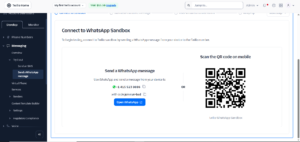

Figure 1: Twilio WhatsApp Sandbox configuration page with sandbox number and unique join code
Common Issue: Sandbox Not Activating
- Activation may take up to 10–15 minutes
- Sending the code multiple times invalidates the previous attempt
- Wait before retrying
Step 3 — Configure Webhook URL
Twilio needs a WhatsApp webhook endpoint to send incoming messages.
Steps:
- Go to Twilio Console
- Open WhatsApp Sandbox settings
- Locate: “When a message comes in”
- Paste your webhook URL (from n8n or server)
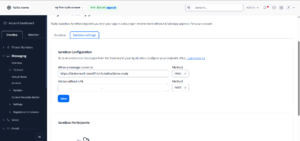

Figure 2: Configuring WhatsApp webhook URL in Twilio sandbox settings. Paste your n8n or backend endpoint in the “When a message comes in” field.
Setting Up the Webhook in n8n
If you’re using n8n for automation:
- Create a new workflow
- Add a Webhook node
- Set HTTP Method to
POST - Copy the Production URL (ends with
/webhook) - Paste this URL in Twilio’s sandbox settings
Note: n8n Cloud URLs already use HTTPS. For self-hosted n8n, ensure SSL is configured.
Critical Requirement: HTTPS
Twilio does not accept HTTP endpoints.
- n8n Cloud: already uses HTTPS
- Self-hosted: requires SSL certificate
Common Issue: Webhook Not Receiving Messages
Causes:
- Wrong URL
- HTTP instead of HTTPS
- Endpoint not active
Fix:
- Verify endpoint is live
- Test using a simple POST request
Step 4 — Send a Test Message
From your phone:
- Send any message to the Twilio sandbox number
Expected result:
- Message appears in your webhook system
- Twilio logs show delivery
Step 5 — Verify Payload Structure
Example payload received:
{
  "Body": "Do you have iPhone 15?",
  "From": "whatsapp:+213XXXXXXXXX",
  "WaId": "213XXXXXXXXX",
  "NumMedia": "0"
}
Important fields:
- Body → message content
- WaId → customer number
- NumMedia → detect media messages
Step 6 — Send a Reply via Twilio
To reply, use the Twilio API or automation tool.
Required fields:
- To: customer number
- From: Twilio number
- Body: message text
Example: Send a Reply Using cURL
Here’s a working example to test replies directly from terminal:
curl -X POST https://api.twilio.com/2010-04-01/Accounts/{YourAccountSid}/Messages.json \
--data-urlencode "To=whatsapp:+213XXXXXXXXX" \
--data-urlencode "From=whatsapp:+14155238886" \
--data-urlencode "Body=Thank you for your message! We'll respond shortly." \
-u {YourAccountSid}:{YourAuthToken}
Replace:
{YourAccountSid}with your actual Account SID{YourAuthToken}with your Auth Token+213XXXXXXXXXwith the customer’s number+14155238886with your Twilio sandbox number
Tip: Save this command as a template for testing — it’s faster than building a full automation for initial verification.
Common Errors and Fixes for Twilio WhatsApp API
Error: 63016 Twilio WhatsApp Error
Cause: Unapproved message template
Fix: Use pre-approved templates for outbound messages. Production accounts cannot send free-form messages — only approved templates.
Quick Troubleshooting Reference
| Problem | Most Likely Cause | Solution |
|---|---|---|
| Sandbox activation fails | Sending code multiple times | Wait 15 minutes, send code once |
| Webhook not receiving | HTTP instead of HTTPS | Switch to HTTPS endpoint |
| Messages not sending | Wrong “From” number | Verify Twilio sandbox number |
| Long delays | Trial account queue | Upgrade to paid account |
| Error 63016 | Unapproved template | Use approved message templates |
Twilio Sandbox Limitations
- Limited number of users
- Requires manual join
- Not suitable for production
Moving to Production
- Request a verified WhatsApp sender
- Link a Facebook Business account
- Submit use case for approval
- Create and approve message templates
Approval time: 1–7 days
Twilio vs Meta WhatsApp API (Quick Overview)
- Twilio: fast setup, beginner-friendly, higher per-message cost
- Meta API: lower cost at scale, longer setup, direct approval
Practical Use Case
A small business can:
- Receive customer messages
- Send automated replies using approved templates
- Connect to a database (Google Sheets)
- Build a full chatbot system
This is the foundation of any WhatsApp messaging API project.
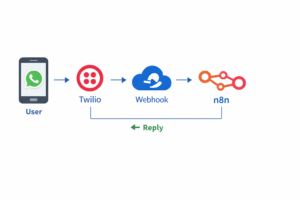

Figure 3: WhatsApp API data flow with Twilio and n8n automation. Messages travel from user to Twilio, through webhook to n8n, then replies return to the user.
FAQ
Do I need a Facebook Business account for Twilio WhatsApp?
No for sandbox testing. Yes for production deployment.
Can I use WhatsApp API for free?
Twilio provides a free trial, but production usage is paid.
Why is my Twilio WhatsApp webhook not working?
Common causes include:
- Using HTTP instead of HTTPS
- Incorrect webhook URL
- Inactive endpoint
How long does Twilio WhatsApp approval take?
Typically between 1 to 7 business days.
Can I use Twilio WhatsApp without coding?
Yes, using automation tools like n8n or Zapier.
Next Step
Once your WhatsApp API is working, the next step is building a full automation workflow.
➡️ Build WhatsApp AI Bot with n8n (Complete Guide)
➡️ Telegram Bot Setup Guide with n8n
Conclusion
Setting up the Twilio WhatsApp API is the foundation of any WhatsApp automation system. Most failures come from incorrect webhook endpoint configuration or sandbox activation issues.
Once the connection works, you can integrate automation tools like n8n and build advanced AI-driven workflows.
Disclaimer: This guide is for educational purposes. Twilio, WhatsApp, and n8n are trademarks of their respective owners. All information is accurate as of March 2026. Always refer to official documentation for the most current information.
Resources
- Twilio Official Documentation
- Meta WhatsApp Business API Docs
- Twilio WhatsApp Sandbox Guide
- WhatsApp Message Templates Guide
Related Articles
Meta Description: Step-by-step Twilio WhatsApp API setup guide. Configure webhook, fix common errors (63016), and send your first message with cURL. Complete tutorial 2026.